

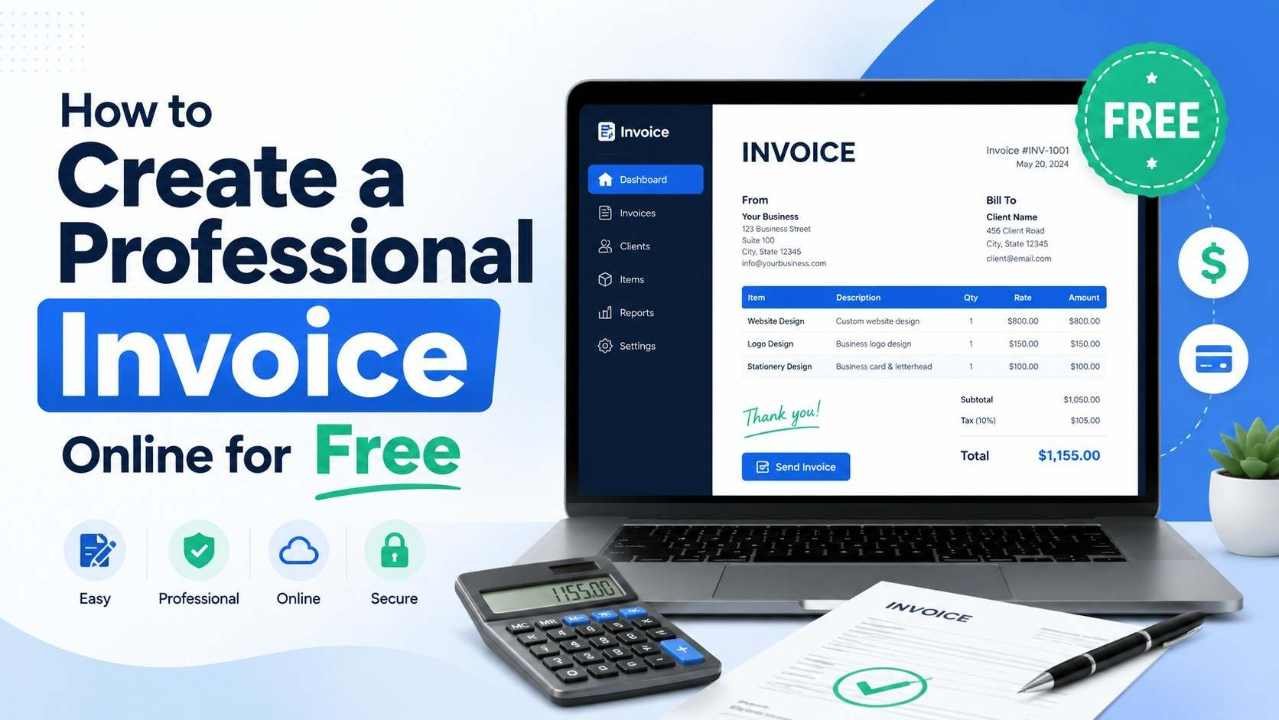
Knowing how to create a professional invoice online for free is useful for freelancers, consultants, agencies, service providers, online sellers, and small business owners. A good invoice does more than ask for payment. It explains what was delivered, how much the client owes, when payment is due, and how the client can pay without confusion.
If your invoice looks messy, incomplete, or unclear, the client may delay payment simply because they do not understand the bill. A clean invoice makes your business look organized and trustworthy. It also helps you keep better records for income tracking, tax preparation, and future client communication.
The good news is that you do not need expensive accounting software to prepare a simple invoice. With a free online tool like the Invoice Generator, you can add your business details, client information, services, prices, taxes, discounts, notes, and payment terms, then download or print a professional invoice in minutes.
What Is a Professional Invoice?
A professional invoice is a formal document that a seller or service provider sends to a client after providing goods or services. It includes a clear list of charges and gives the client the information needed to make payment.
A strong invoice usually includes:
- Your business name, logo, address, email, and phone number
- Client name and billing details
- Unique invoice number
- Invoice date and due date
- Description of products or services
- Quantity, rate, subtotal, tax, discount, and total amount
- Payment instructions
- Notes, terms, or late payment policy
Official guidance from GOV.UK also lists important invoice details such as a unique identification number, company details, customer details, description of goods or services, invoice date, supply date, amounts charged, VAT where applicable, and total amount owed. Requirements can vary by country, business type, and tax status, so always check your local rules when invoices are used for official tax or legal purposes. You can review the GOV.UK invoice guidance here: invoices and what they must include.
Why Create an Invoice Online Instead of Manually?
Many beginners start by creating invoices in Word, Excel, Google Docs, or handwritten formats. That can work, but it often creates problems. Manual formatting takes time. Totals can be wrong. Invoice numbers may get duplicated. Important fields may be missed. A client may receive a file that looks unprofessional or is hard to read on mobile.
Using an online invoice generator gives you a cleaner workflow. You can fill in the fields, review totals, add taxes or discounts, include payment notes, and export a client-ready document. This is especially helpful when you need to send invoices regularly and want every document to follow the same structure.
An online invoice also helps beginners avoid common formatting mistakes. Instead of worrying about table spacing, alignment, and totals, you can focus on accurate billing details.
How to Create a Professional Invoice Online for Free
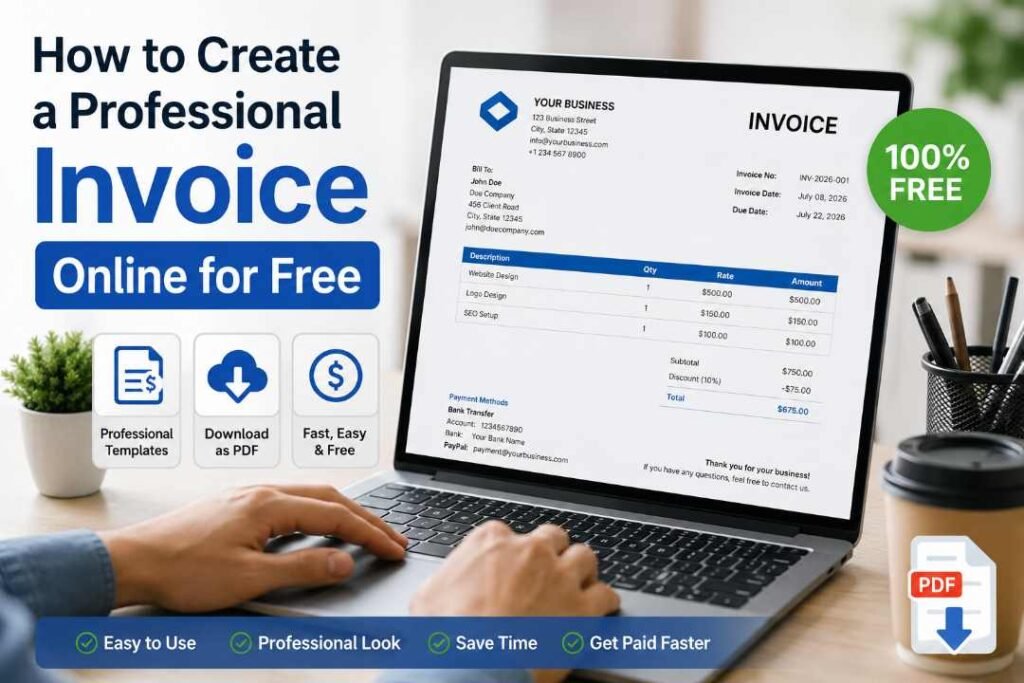
1. Open a Free Invoice Generator
Start with a simple tool that lets you create invoices without installing software. Open the free online invoice generator and choose the invoice format or template that best fits your work.
For most freelancers and small businesses, a clean modern template is enough. You do not need a complicated design. The invoice should be easy to read, professional, and focused on payment details.
2. Choose the Correct Document Type
Some tools allow you to create invoices, quotations, or receipts. Choose “Invoice” when the work is completed or payment is being requested. Choose “Quotation” when you are giving a price before work begins. Choose “Receipt” when payment has already been received.
This distinction matters because each document has a different purpose. A quotation is not a payment request. A receipt is proof of payment. An invoice is the document that tells the client what they owe.
3. Add Your Business Information
Your invoice should clearly show who is sending it. Add your business name, logo if available, address, email, phone number, and website if relevant.
If you are a freelancer, you can use your personal brand name or registered business name. If you work with international clients, include the country in your address and write your contact details clearly.
Before uploading a logo, make sure it is clear and lightweight. If your logo file is too large, you can reduce its size with the Bulk Image Compressor. If the logo is in the wrong format, use the Image Converter to prepare a better file for online use.
4. Add Client Details
Next, add the client’s name, company name, address, and email. If you are invoicing a company, use the official business name instead of only the person’s first name. This helps the invoice look professional and makes it easier for the client’s finance team to process.
For example:
- Bill To: Bright Media Agency
- Attention: Sarah Khan
- Email: accounts@example.com
- Address: Office address or billing address
If the client gave you a purchase order number, project reference, or department name, include it in the reference area. This small step can prevent payment delays.
5. Create a Unique Invoice Number
Every professional invoice should have a unique invoice number. It helps both you and the client track the document later.
You can use a simple format like:
- INV-0001
- INV-2026-001
- SC-CLIENTNAME-001
- PROJECT-2026-05
Avoid using the same invoice number twice. Duplicate invoice numbers can create confusion in your records and your client’s accounting system.
6. Add Invoice Date and Due Date
The invoice date is the date you create or send the invoice. The due date is when payment should be made.
Common payment terms include:
- Due on receipt
- Due in 7 days
- Due in 14 days
- Due in 30 days
For small projects, “Due in 7 days” or “Due in 14 days” is common. For larger companies, payment may be processed on a 30-day cycle. Agree on payment terms before starting the work, then show the same terms clearly on the invoice.
7. List Products or Services Clearly
This is the most important part of the invoice. The client should immediately understand what they are paying for.
Instead of writing a vague description like “Design work,” write something more specific:
- Logo design package: concept, revisions, and final files
- Website landing page design and mobile layout
- Monthly SEO blog writing package: 4 articles
- Social media ad creative design: 10 banners
Each line item should include quantity, rate, and amount. If you charge hourly, write the number of hours and hourly rate. If you charge per project, write one project fee.
8. Calculate Subtotal, Tax, Discount, and Total
Before sending the invoice, check the numbers carefully. If you need to calculate percentages, discounts, taxes, or service totals, use the Smart Calculator before finalizing the invoice.
Here is a simple example:
- Website banner design: 5 banners × $20 = $100
- Logo cleanup: 1 project × $50 = $50
- Subtotal: $150
- Discount: 10% = $15
- Total before tax: $135
- Tax if applicable: based on your local rate
Always double-check tax rules before adding tax. Some freelancers are not required to charge tax depending on their country, registration status, client location, and business structure. When in doubt, ask a qualified accountant or local tax authority.
9. Add Payment Instructions
A professional invoice should make payment easy. Include the payment method and any details the client needs.
Depending on your business, you may include:
- Bank account details
- PayPal email
- Stripe or payment link
- Wise account details
- JazzCash, Easypaisa, or local payment method
- Check or cash instructions, if relevant
If you use a payment link or client portal, you can create a scannable code with the QR Code Generator and add it to your invoice or email. This can be useful when clients prefer scanning a code instead of copying a long URL.
10. Add Notes and Terms
The notes section is a good place to thank the client or explain small details. Keep it short and professional.
Examples:
- Thank you for your business.
- Please include the invoice number when making payment.
- Payment is due within 14 days of the invoice date.
- Late payments may pause future work until the balance is cleared.
Do not use aggressive language. Clear and polite terms usually work better than harsh wording.
11. Review the Invoice Before Sending
Before downloading or sending the invoice, review every detail. Check your business name, client name, invoice number, totals, due date, payment method, and spelling.
A professional invoice should not have wrong totals, missing payment details, or unclear service descriptions. A two-minute review can save days of back-and-forth messages.
12. Download, Print, or Save the Invoice
Once everything is correct, download the invoice as a PDF if the tool provides that option. PDF is usually the best format because it keeps the layout stable and looks professional on most devices.
Save a copy for your records using a clear file name, such as:
- INV-2026-001-Bright-Media.pdf
- Invoice-Logo-Design-Ahmed-Studio.pdf
- INV-0008-Website-Project.pdf
Good file naming makes it easier to find invoices later when checking payments, preparing reports, or reviewing client history.
Practical Example: Freelancer Invoice
Imagine you are a freelance graphic designer creating an invoice for a birthday invitation design project.
Business: Creative Pixel Studio
Client: PartyPrints Co.
Invoice Number: INV-2026-014
Invoice Date: July 8, 2026
Due Date: July 15, 2026
Line Items:
- Custom birthday invitation design: 1 × $60 = $60
- Editable Canva layout setup: 1 × $25 = $25
- Mockup image preparation: 3 × $10 = $30
Subtotal: $115
Discount: $10
Total: $105
Payment Note: Please send payment within 7 days and include invoice number INV-2026-014 in the payment reference.
This invoice is specific, easy to understand, and professional. The client can see exactly what was delivered and what they need to pay.
Practical Example: Small Business Invoice
Now imagine a small repair service invoicing a local client.
Business: QuickFix Services
Client: Green Mart Store
Invoice Number: QF-2026-032
Invoice Date: July 8, 2026
Due Date: July 22, 2026
Line Items:
- Air conditioner inspection: 1 × $30 = $30
- Filter replacement: 2 × $15 = $30
- Service labor: 2 hours × $25 = $50
Total: $110
This type of invoice works because the services are itemized. The client can understand the labor cost, material cost, and inspection charge separately.
Common Mistakes to Avoid When Creating an Invoice
Using Vague Service Descriptions
Vague descriptions can create confusion. Write exactly what you provided. “SEO article writing, 2,000 words, including keyword optimization” is better than “content work.”
Forgetting the Due Date
If there is no due date, the client may not know when to pay. Always include a clear payment deadline.
Not Adding Payment Instructions
Clients should not have to ask, “How do I pay?” Include payment details clearly inside the invoice.
Sending Invoices Without Checking Totals
Wrong totals look unprofessional and may delay payment. Use a calculator when needed and review the final amount before sending.
Using Duplicate Invoice Numbers
Each invoice needs a unique number. Duplicate numbers can create accounting issues for both sides.
Ignoring Recordkeeping
Do not send invoices and forget to save copies. The IRS explains that business records should be kept as long as needed to prove income or deductions on a tax return. You can read the IRS guidance here: IRS recordkeeping for small businesses.
How to Send an Invoice Professionally
After creating the invoice, send it with a short, polite message. Do not send only an attachment with no context.
Example email:
Hello [Client Name],
I hope you are doing well. Please find attached invoice INV-2026-014 for the completed design work. Payment is due by July 15, 2026. Kindly include the invoice number in the payment reference.
Thank you,
[Your Name]
This message is simple, professional, and clear. It tells the client what the invoice is for, when payment is due, and what reference to use.
How Online Invoices Help Your Business Look More Professional
A clean invoice improves the way clients see your business. Even if you are a solo freelancer, your billing process should feel organized. Clients are more likely to trust service providers who communicate clearly and document work properly.
Professional invoices also help you review your own business performance. At the end of the month, you can check how many invoices were sent, which clients paid, which services earned the most, and which payments are still pending.
For growing businesses, this habit becomes even more important. Good invoicing supports cleaner bookkeeping, better cash flow, and fewer payment misunderstandings.
FAQs
Can I create a professional invoice online for free?
Yes. You can use a free online invoice generator to create a professional invoice with your business details, client information, itemized services, totals, payment terms, and notes.
What should I include in a professional invoice?
A professional invoice should include your business information, client details, invoice number, invoice date, due date, service or product descriptions, quantity, rate, subtotal, tax if applicable, total amount, payment instructions, and terms.
Is a PDF invoice better than a Word invoice?
In most cases, yes. A PDF keeps the invoice layout stable and is easier to send, download, print, and store. Word files can shift formatting depending on the device or software used.
Do freelancers need invoice numbers?
Yes. Freelancers should use invoice numbers because they make it easier to track payments, organize records, and communicate with clients about specific invoices.
Can I add tax to my invoice?
You can add tax if your business is required to charge it. Tax rules depend on your location, business registration, client location, and service type. Always check local tax rules or speak with a qualified professional.
How soon should I send an invoice?
Send the invoice as soon as the work is completed, a milestone is approved, or the agreed billing date arrives. Faster invoicing usually helps reduce payment delays.
What is the best free tool to create an invoice online?
A good free invoice tool should be simple, clear, browser-based, and able to create a professional invoice with totals, due dates, notes, and downloadable output. The SoftCodeOn Invoice Generator is a practical option for freelancers, agencies, and small businesses.
Conclusion
Learning how to create a professional invoice online for free can make your business workflow cleaner, faster, and more reliable. A strong invoice helps clients understand the bill, reduces payment confusion, and gives you a proper record of your work.
Start with the basics: add your business details, client information, unique invoice number, invoice date, due date, clear service descriptions, accurate totals, payment instructions, and polite terms. Before sending, review every detail and save a copy for your records.
Your next step is simple: open the Free Invoice Generator, create your first professional invoice, download it as a PDF, and send it to your client with confidence.
