

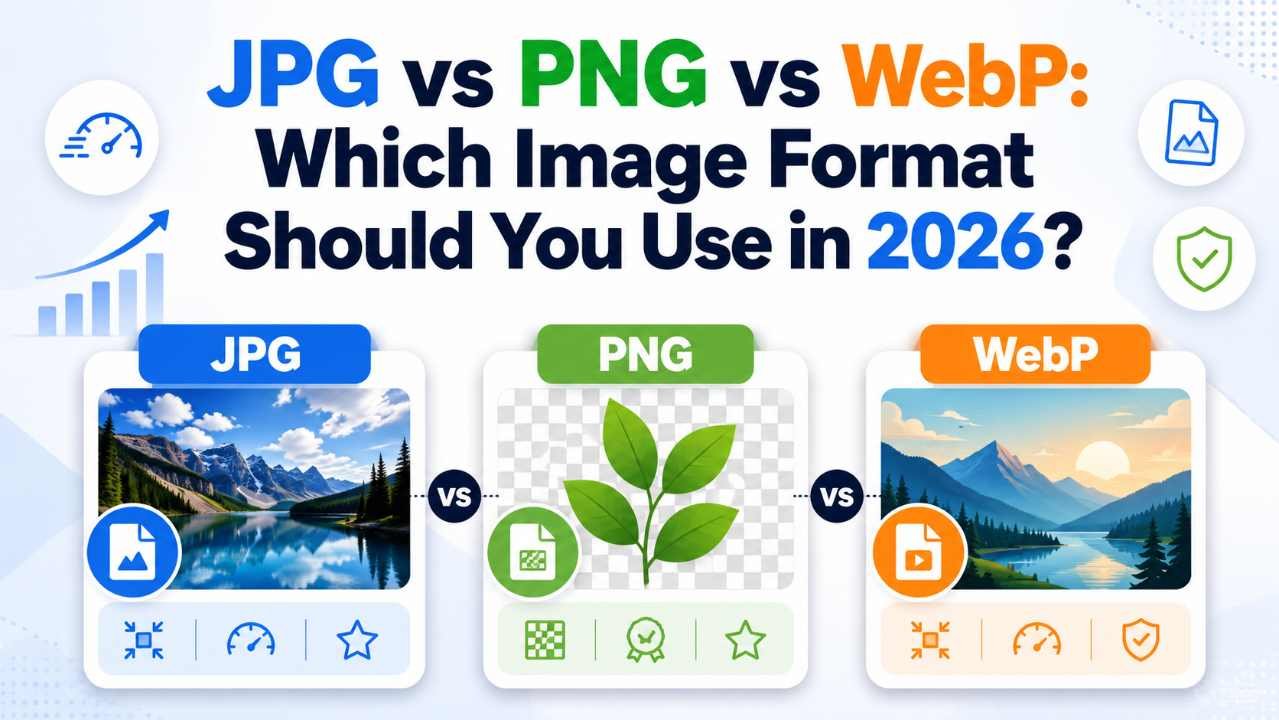
Choosing an image format sounds simple until you need to balance quality, file size, transparency, compatibility, and website speed. A photograph may look excellent as a JPG but become unnecessarily heavy as a PNG. A transparent product graphic may need PNG, while the same graphic could load faster as WebP.
That is why the JPG vs PNG vs WebP decision should depend on the image and its purpose not on whichever extension feels most familiar. For most modern websites, WebP is an excellent default. JPG remains practical for photographs and broad compatibility, while PNG is still valuable for screenshots, sharp graphics, and transparent images.
This guide explains the differences and gives you a reliable workflow for choosing and optimizing images.
JPG vs PNG vs WebP at a Glance
| Feature | JPG/JPEG | PNG | WebP |
|---|---|---|---|
| Compression | Lossy | Lossless | Lossy or lossless |
| Transparency | No | Yes | Yes |
| Best for | Photos and realistic images | Screenshots, logos, sharp graphics | Modern web images and transparent graphics |
| Typical file size | Small | Often large | Usually smallest at similar quality |
| Repeated saving | Can reduce quality | Preserves quality | Depends on compression mode |
| Browser support | Excellent | Excellent | Excellent in modern browsers |
| Animation | No | APNG variant | Yes |
The right format depends on the content. A hero photograph, a logo with a transparent background, and a screenshot containing tiny text should not automatically use the same format.
What Is JPG?
JPG, also written as JPEG, is one of the most common formats for photographs. It uses lossy compression, which removes some image data to reduce file size. At sensible settings, the difference may be difficult to notice. At aggressive settings, you may see blockiness, blurry edges, color banding, or noise around objects.
JPG works best for images with many colors, natural gradients, complex textures, and soft transitions between light and shadow. Travel photos, portraits, property listings, food photography, and product lifestyle images are common examples.
Advantages of JPG
JPG is widely supported, easy to share, and normally much smaller than a PNG version of the same photograph.
You can also control export quality. A setting around 70–85 often works well for web photos, but there is no universal number. The best setting depends on the image dimensions, subject, contrast, and viewing size.
Disadvantages of JPG
JPG does not support transparent backgrounds. It is also a weak choice for logos, diagrams, screenshots, icons, or graphics containing crisp text because compression can soften edges.
Repeatedly editing and exporting the same JPG may compound quality loss. Keep a high-quality master and create new optimized versions from that original.
Use JPG When
Use JPG for photographs, realistic banner images, email-friendly photos, broad software compatibility, and any situation where transparency is unnecessary.
What Is PNG?
PNG stands for Portable Network Graphics. It uses lossless compression, meaning the decoded image preserves its pixel data. That makes PNG a strong option when sharpness matters more than achieving the smallest possible file.
PNG is particularly useful for screenshots, interface elements, charts, diagrams, transparent logos, illustrations with hard edges, and graphics that may be edited repeatedly.
According to MDN’s image format guide, PNG is a lossless raster format and remains suitable when accurate reproduction or transparency is required.
Advantages of PNG
PNG preserves small text, crisp edges, and flat areas of color. It supports alpha transparency, so pixels can be fully transparent, partially transparent, or opaque. This makes it useful for product cutouts, overlays, badges, and graphics placed on different backgrounds.
Because PNG is lossless, resaving it avoids the generation loss associated with JPG. A layered source file is still the better master.
Disadvantages of PNG
PNG files can become very large, especially for photographs. A full-width photo saved as PNG may be several times heavier than an optimized JPG or WebP without looking meaningfully better to readers.
PNG is not automatically the “highest-quality” choice. It preserves data, but it may be inefficient for delivery. Using PNG for every image can increase page weight, slow mobile loading, and fill a WordPress media library with oversized files.
Use PNG When
Use PNG for lossless screenshots, transparent graphics, readable interface text, and images with sharp lines or limited colors. For websites, compare it with lossless WebP before publishing.
What Is WebP?
WebP is a modern format built for web delivery. It supports lossy compression, lossless compression, transparency, and animation. This flexibility allows it to replace many JPG, PNG, and GIF files used on websites.
Google’s official WebP documentation reports that WebP can produce smaller files than comparable JPEG and PNG images. Actual savings vary by image and encoder settings, but WebP generally gives publishers a more efficient quality-to-size balance.
Advantages of WebP
A photographic WebP can be smaller than a visually similar JPG, while lossless WebP can compete with PNG for graphics and transparent assets. WebP also supports transparency in both lossy and lossless workflows, which is useful for ecommerce cutouts, decorative overlays, and marketing graphics.
Modern Chrome, Edge, Firefox, Safari, and Opera support WebP, so compatibility is rarely a serious barrier for ordinary WordPress sites.
Disadvantages of WebP
Some older applications, email workflows, legacy systems, and third-party upload forms may not handle WebP properly. Clients may also request JPG or PNG because their publishing tools expect those formats.
A WebP file may be lossy or lossless, so the extension alone does not reveal how it was encoded. You still need to choose appropriate export settings and inspect the result.
Use WebP When
Use WebP for blog images, product photos, banners, portfolios, thumbnails, transparent web graphics, and most images delivered through modern browsers. Keep JPG or PNG masters for editing and compatibility outside the web.
JPG vs PNG vs WebP: Which Has the Best Quality?
There is no single winner because “quality” can mean different things.
If quality means preserving every pixel, PNG or lossless WebP wins. If it means looking good while loading quickly, lossy WebP often offers the best balance. If it means opening almost everywhere, JPG remains dependable for photos.
Match the format to the content:
- Photos usually work well as JPG or lossy WebP.
- Screenshots with tiny text often need PNG or lossless WebP.
- Transparent product images can use PNG or WebP.
- Simple logos are often better as SVG than any raster format.
Judge quality at the size visitors will actually see. Unreadable text at normal size is a real problem.
Which Format Creates the Smallest File?
WebP usually creates the smallest web-ready file at comparable visual quality, but not every time. A well-optimized JPG may beat a poorly configured WebP, and a simple flat graphic may compress efficiently as PNG.
Three factors are often more important than the extension:
- Pixel dimensions: A 4000-pixel image displayed at 800 pixels wastes data.
- Compression quality: Maximum quality can create a much larger file with little visible benefit.
- Image content: Noise, texture, gradients, transparency, and sharp edges compress differently.
Resize first, choose the correct format, and then compress. Our free online image converter can convert JPG, PNG, and WebP files, while its bulk image compressor can reduce multiple files in one workflow.
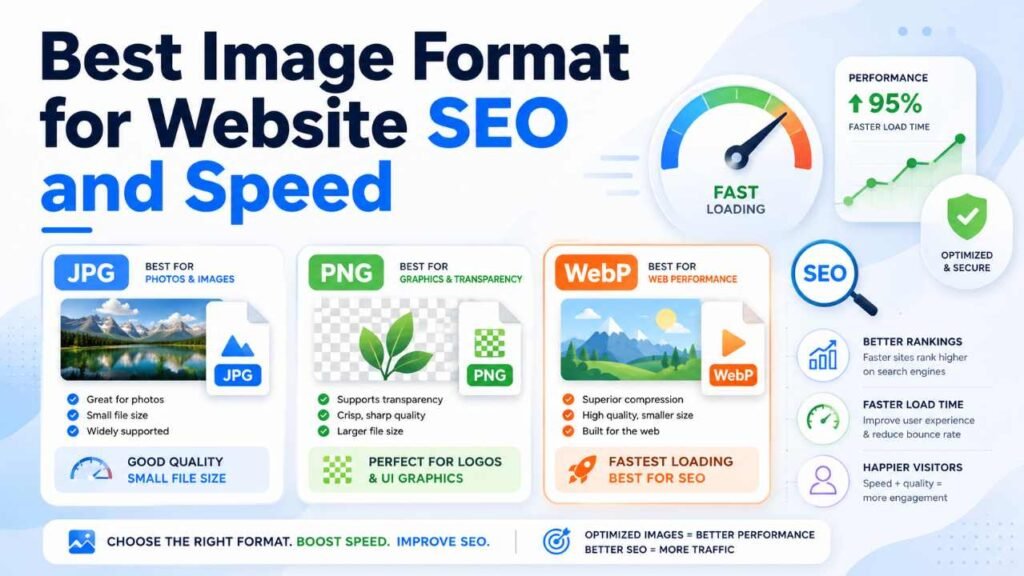
Best Image Format for Website SEO and Speed
For most website images, WebP is the strongest default. Smaller files can reduce transfer size and help images appear sooner, especially for mobile visitors. However, changing the file extension alone does not guarantee better SEO.
A complete image optimization process should include correct dimensions, responsive image sizes, descriptive file names, useful alt text, width and height attributes, lazy loading for below-the-fold images, and sensible compression.
For a broader publishing checklist, read guide to structuring a blog post for Google. It explains how content structure, internal links, schema, and performance work together.
Plugins cannot fully compensate for poor source images. A 6000 × 4000 WebP still forces the browser to process far more pixels than necessary.
For image-heavy sites, compare caching, responsive image, and lazy-loading options in this guide to WordPress speed optimization plugins. Elementor users can also follow the practical fixes in Elementor Site Slow? 15 Proven Fixes.
Practical Examples: Choosing the Right Format
Blog Featured Image
You have a 1600 × 900 photograph containing people and a detailed background.
Best choice: Lossy WebP.
Export near the largest size your theme displays. Compare settings around 70–85 and keep the lowest level that still looks clean. Use JPG when another platform requires it.
Software Tutorial Screenshot
The screenshot contains menus, labels, icons, and code.
Best choice: PNG or lossless WebP.
Start with PNG when text clarity is critical, then test lossless WebP. Inspect it at normal reading size before choosing the smaller file.
Transparent Product Cutout
An ecommerce image shows a chair with the background removed.
Best choice: WebP with transparency.
PNG will work, but transparent WebP may be lighter. Check the product edge against both light and dark backgrounds for halos.
Logo
The logo uses simple shapes and must stay sharp at different sizes.
Best choice: SVG.
Use PNG or WebP only when the platform rejects SVG. Avoid JPG when transparency or razor-sharp edges are needed.
Image Sent to a Client
The client needs a photo that opens in common office and editing software.
Best choice: JPG.
Deliver a WebP version for the website and a JPG version for general use when the project needs both.
Step-by-Step Image Optimization Workflow
Step 1: Keep an Original Master
Store the highest-quality original separately. Do not overwrite it with the compressed web version.
Step 2: Crop Before Resizing
Remove unnecessary areas first. This improves composition and reduces the pixels that need to be encoded.
Step 3: Resize for the Display Area
Find the maximum rendered width. An image displayed at 900 pixels rarely needs to be uploaded at 5000 pixels.
Step 4: Select the Format by Content
Choose JPG for compatible photo delivery, PNG for lossless graphics or screenshots, WebP for efficient web delivery, and SVG for suitable logos and icons.
Step 5: Compare Quality Settings
Export two or three versions and inspect faces, text, gradients, shadows, hair, and high-contrast edges at normal display size.
Step 6: Compress and Verify
Process the selected images with bulk image compression tool. Confirm dimensions, file size, transparency, and visual quality afterward.
Step 7: Rename and Add Alt Text
Use a descriptive file name such as jpg-vs-png-vs-webp-comparison.webp instead of IMG_4827.webp. Write alt text that explains the image rather than stuffing keywords.
Step 8: Test the Published Page
Open the page on desktop and mobile. Check image clarity, layout stability, loading behavior, and transparent backgrounds.
Common Mistakes to Avoid
Saving Every Image as PNG
PNG is not a universal quality button. It often creates oversized photographs with no visible advantage.
Converting a Poor JPG to PNG
Changing JPG to PNG does not restore lost detail. It usually creates a larger file containing the same artifacts.
Converting Without Resizing
Format conversion cannot fix excessive dimensions. Resize large originals first.
Always Using Maximum Quality
A setting of 100 may greatly increase file size with almost no visible improvement. Compare realistic settings.
Forgetting Transparency
JPG replaces transparency with a solid background. Use PNG or WebP when the asset must blend into different designs.
Recompressing Lossy Files Repeatedly
Repeated JPG or lossy WebP exports can accumulate artifacts. Generate each published copy from a clean master.
Assuming WebP Fixes Everything
A huge, poorly sized WebP can still load slowly. Format is only one part of image optimization.
FAQs
Is WebP better than JPG and PNG?
WebP is usually better for modern web delivery because it supports lossy and lossless compression, transparency, and smaller files. JPG remains useful for compatibility, while PNG is valuable for lossless screenshots and graphics.
Should I use JPG or PNG for a website?
Use JPG for photographs when WebP is unavailable. Use PNG for screenshots, crisp graphics, and transparent assets. For most website images, test WebP and choose the smallest file that preserves acceptable quality.
Does WebP reduce image quality?
Lossy WebP can reduce quality because it removes data, similar to JPG. Lossless WebP preserves image data. The visible result depends on the compression mode and quality setting.
Can WebP have a transparent background?
Yes. WebP supports alpha transparency and can replace many transparent PNG files used for product cutouts, overlays, badges, and website graphics.
Is PNG higher quality than JPG?
PNG uses lossless compression, while JPG removes some data. PNG is therefore better for sharp graphics and text, but an optimized JPG is normally more efficient for photographs.
Does converting JPG to WebP improve SEO?
It can support page performance when the WebP file is smaller, but conversion alone does not guarantee rankings. Dimensions, responsive delivery, alt text, layout stability, content quality, and overall speed also matter.
Should I delete original files after converting to WebP?
No. Keep original or high-quality master files for editing and compatibility. Use optimized WebP copies for website delivery.
What image format is best for WordPress?
WebP is a strong default for WordPress photos and many transparent graphics. PNG works well for lossless screenshots, while JPG remains practical for compatibility. Choose the smallest format that preserves the quality your image needs.
Conclusion
In the JPG vs PNG vs WebP comparison, WebP is the best general-purpose format for most modern websites. It handles photographs, transparency, lossless graphics, and animation while often producing smaller files. JPG remains useful for photographic compatibility and sharing. PNG is still right when exact detail, crisp text, or dependable lossless transparency is required.
Stop choosing formats by habit. Examine the image, decide whether transparency or lossless detail matters, resize it for the real display area, compare compression visually, and publish the smallest version that still looks right.
Test one heavy website image in all three formats at the same dimensions, then keep the version with the best balance of clarity and file size. You can create the alternatives with online image converter and optimize the final files using its bulk image compressor.
