

Elementor Site Slow. Let’s not sugarcoat it: you fell in love with Elementor because of the drag-and-drop freedom, the stunning visuals, and the ability to build pixel-perfect layouts without touching a single line of code. But a few months and a dozen plugin installs later, that lightning-fast design interface has turned into a sluggish front-end nightmare. If your Core Web Vitals are screaming red and visitors are bouncing before your hero section even loads, you’re facing the single biggest criticism of page builders: a slow Elementor site that hurts both user experience and SEO rankings.
The problem isn’t necessarily Elementor itself, but how we use it. Think of Elementor as a high-performance sports car; if you fill the trunk with bricks (bloated plugins), never change the oil (no caching), and drive with the parking brake on (unoptimized assets), you’re going to stall. In this guide, I’m not just going to tell you to “buy better hosting.” We’re diving deep into the granular, technical, and often overlooked configuration tweaks that transform a sluggish Elementor setup into a sub-2-second loading beast. We’ll fix the render-blocking resources, tame the excessive DOM, and rebuild the engine of your WordPress site for real-world speed that Google actually rewards.
Understanding the Elementor Site Slow
Before we start flipping switches, we need to diagnose the disease instead of just treating the symptoms. Most users blame Elementor for being “bloated,” but the reality is a combination of dynamic loading choices, unoptimized assets, and a lack of fundamental WordPress optimization. Understanding how the editor loads files is the first step to fixing it.
Why Does Elementor Load So Many Files?
When you build a page with Elementor, you’re essentially constructing a dynamic application inside WordPress. Unlike a hard-coded HTML page, Elementor relies on a framework that needs to load the core widget logic, animations, and theme compatibility scripts. By default, Elementor often loads CSS and JavaScript for every single widget on the site, even if that specific page only uses a heading and a button. This creates dozens of small asset requests, which on HTTP/1.1 connections can choke the browser. The key insight here is that Elementor prioritizes flexibility over minimalism, meaning it ships with the capability to run complex popups and forms everywhere, unless you explicitly tell it to stop.
The Impact of Render-Blocking Resources on SEO
Google’s crawlers have a budget, and if your site takes three seconds to visually render because it’s waiting for massive CSS and JS files to download, you’re bleeding organic traffic. A slow Elementor site specifically struggles with Render-Blocking Resources files that the browser must pause to read before displaying anything on the screen. When icons like Font Awesome and Google Fonts are loaded via external requests, the browser halts rendering, creating a white flash of nothingness. This isn’t just an annoyance; it directly deflates your Core Web Vitals scores, specifically First Contentful Paint (FCP) and Largest Contentful Paint (LCP), signaling to Google that your page offers a poor user experience.
Essential Pre-Optimization Housekeeping
Think of this as the “doctors checkup” phase. You wouldn’t tune an engine with dirty oil. Before installing caching plugins or messing with code, we need to establish a performance baseline and ensure the digital environment is healthy enough to accept speed improvements.
The Minimum Viable Hosting Requirement
You cannot improve a $3/month shared hosting plan with a plugin, as Elementor needs strong server processing power for dynamic template assembly. Avoid shared hosting that overcrowds servers; instead, choose a hosting stack with PHP 8.2+, MySQL/MariaDB, and server-side caching like Litespeed or Nginx FastCGI for better performance. For insights on the best hosting options and server configurations for page builders, refer to my detailed analysis of top WordPress hosting providers.
How to Audit Your Current Speed with Google PageSpeed Insights
Before changing a single setting, grab a benchmark. Open a private browser window and run your most visually complex page through Google PageSpeed Insights (PSI). I don’t want you to obsess over the “A” grade performance number alone; instead, look at the “Opportunities” section. You’ll likely see warnings about excessive DOM size and offscreen images. Record your TTFB and LCP times on a notepad. This baseline is critical because you can break your layout by changing optimization settings, and you’ll need to know if a specific tweak actually made the difference.

Core Elementor Settings to Turn Off Now
Elementor ships with factory settings that look pretty but are performance killers. A shocking amount of speed can be unlocked by simply disabling features you aren’t using. We’re going into the Elementor > Settings > Features tab to de-bloat the editor interface without losing visual integrity.
Disabling Unused Widgets and Experiments
Elementor’s “Features” screen is your performance control panel. You’ll see a “Stable Features” list. Audit this ruthlessly. Do you use widgets like SoundCloud, Roadmap, or Countdown? If not, turning them off prevents the corresponding CSS/JS from being fetched. Even more critically, look at “Ongoing Experiments.” Developers test features here, but keeping too many active can generate diverse asset skeletons. I generally recommend optimizing DOM output by disabling “Improved CSS Loading,” but this requires testing, as it changes how the page structure is calculated.
Replacing Icon Libraries with SVG Alternatives
Font Awesome and eicons are heavy. Loading a huge icon font library for a single arrow icon is a performance crime. In the Elementor Settings, disable unused icon libraries. Then, stop using the “Icon” widget that relies on font files. Instead, use the “Image” widget to insert actual inline SVGs. SVGs are pure code, weightless, and do not require external HTTP requests. They render instantly as part of the DOM, cutting the visual load time significantly.
The “Improved Asset Loading” Deep Dive
This is the holy grail. Navigate to Elementor > Settings > Experiments and activate “Improved Asset Loading.” Once active, you’ll find a new section. This feature limits the loading of widget CSS/JS only to widgets that actually appear on the page. If your homepage only uses the Heading, Image, and Button widgets, Elementor will now ignore the CSS for the Pro Slider, Forms, and Gallery. The result is a dramatic 40-60% reduction in unused CSS/JS kilobytes, instantly boosting your performance score without changing the visual design.
Taming the DOM Size and Document Structure
A bloated Document Object Model (DOM) is the silent killer of interactivity. Elementor generates more HTML nesting than a hand-coded site, but you can control the chaos. Google penalizes pages with more than 1,500 DOM nodes, yet an average Elementor build often exceeds this threefold.
Optimizing Containers vs. Inner Sections
The “Flexbox Container” is the modern replacement for the old Section/Column layout. If you’re still building pages using “Inner Sections,” stop immediately. Inner sections create unnecessary wrapper divs (a section inside a column inside a section). Switching to the Flexbox Container framework collapses this structure, cutting the node count by half. Containers allow for better alignment without additional spacing widgets, creating a lean, semantic HTML structure that is easier for Googlebot to interpret and quicker for mobile CPUs to paint.
Removing Default Theme Block Templates
Many WordPress themes use “Block Templates” to style the header and footer, but if you’re using Elementor’s Theme Builder, this creates a conflict a dual layer of HTML. You must go to the “WordPress Customizer” and disable the theme’s built-in header and footer. Check your homepage source code. If you see a <header> generated by your Astra/GeneratePress theme, and another <div data-elementor-type="header"> right below it, you’ve got a double header. This redundancy is a huge source of hidden bloat that increases the Time to Interactive (TTI) metric.
Advanced Asset Optimization Techniques
Now we move beyond the simple toggle switches. This section addresses the technical architecture of how assets are delivered. We want to shrink the files, serve them intelligently, and clean up the database calls that slow down the server response.
Caching Setup Between Disk and Redis
Basic page caching saves an HTML snapshot of your page, which is good. But object caching is better. Disk-based caching writes temporary files to your server storage, which is slow for busy sites. If your site is not using an Object Cache like Redis, the database is queried every single time a cache miss occurs. Redis holds data in the server’s RAM, making the retrieval of Elementor’s dynamic CSS and widget configurations near-instantaneous. If you’re serious about speed, and you’ve secured appropriate hosting, ensuring Redis is enabled via your control panel is non-negotiable.
How to Properly Lazy Load Background Images
Elementor’s built-in lazy loading covers standard <img> tags, but it notoriously misses CSS background images (like those set in a Section or Container style). These background images are often the hero visuals that create the LCP benchmark. If they are lazy-loaded via JavaScript, the delay is catastrophic. Your hero section background image should load eagerly. Remove any lazy-load class from the top container. Conversely, for images deep in the footer, manually apply loading="lazy" to the widget advanced settings to prevent them from competing for bandwidth with the critical hero asset.

Critical CSS Removal and File Minification
Most speed plugins (like FlyingPress or Perfmatters) offer an “Remove Unused CSS” feature. This generates a unique, tiny CSS file containing only the styles needed to render the top two screen scrolls; the rest of the code is deferred. While this is powerful, Elementor’s inline styling (the post-2242.css files) can sometimes break layouts if removed incorrectly. I recommend using a premium solution for this, and I’ve detailed the exact configuration logic specifically how to handle Elementor’s e-animations in my guide on FlyingPress Guide to Website Speed Score . Get this right, and your FCP will drop into the green zone.
The Plugin Conflict Elimination Strategy
WordPress’s modular nature is a trap. You end up with five plugins overlapping in functionality, creating a cacophony of conflicting scripts. A slow Elementor site is often just an Elementor site strangled by competing tools.
Tools That Are Silently Slowing You Down
Anti-spam plugins that load reCAPTCHA on every page (even where there’s no form), social sharing plugins that fetch external trackers, and bloated security suites often inject scripts into the front-end head. This adds 10-15 external HTTP requests that aren’t related to your content. Be aware of statistical heatmap plugins; they record user interactions by pinging the server constantly, eating up the main thread’s attention. If you’re running a sidebar widget to show recent posts that queries the database dynamically rather than pulling from cache, you’re adding query overhead that slows the whole server.
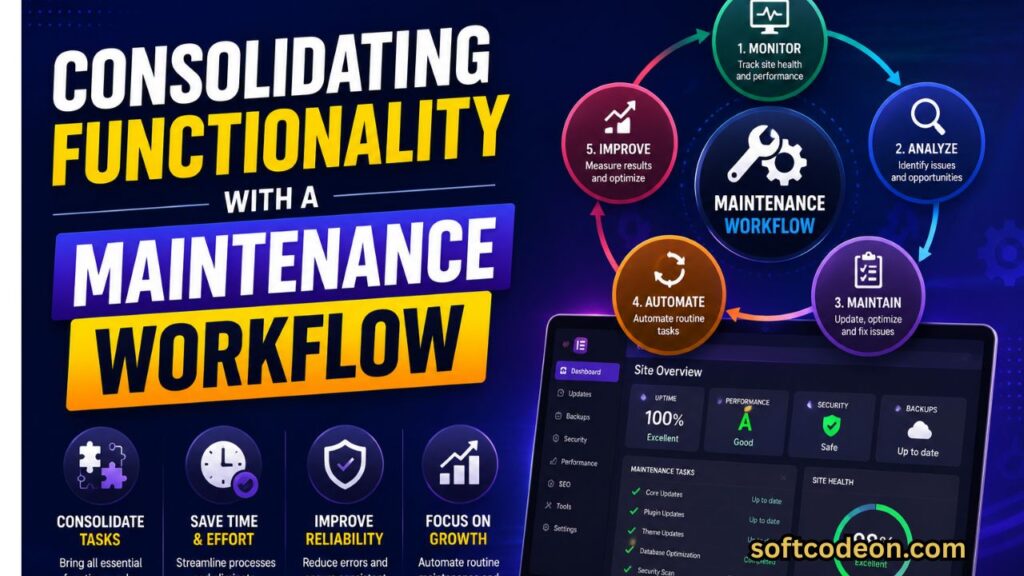
Consolidating Functionality with a Maintenance Workflow
You likely don’t need a separate plugin for analytics headers, a separate one for cookies, and a separate one for footer code. Instead, use a centralized asset management tool. Audit your plugin list and ask: “Does this plugin load assets on every page?” If you market exclusively through digital channels, you understand how speed impacts conversion rates. If you want to diversify how traffic reaches your optimized pages, you might look into a comprehensive SMO Strategy for social media boost , but ensure those social pixels are loaded via Google Tag Manager, not individual plugin headers, to keep the request waterfall clean.
Beyond Plugins: Server and Database Side
The front-end delivery truck can’t move fast if the warehouse (server) is messy. Let’s look under the hood at the MySQL database and the server’s logic.
Cleaning Elementor’s Database Bloat
Every time you save a page, Elementor creates revisions. Even if WordPress limits post revisions to 3, Elementor’s data is complex JSON stored in the postmeta table. Over a year, old widget data from designs you trashed builds up. Use WP-CLI or a database cleaner like WP-Optimize to purge expired transients and orphaned metadata. Look for rows in the postmeta table where the meta_key starts with _elementor_ but the accompanying post_id no longer exists. Removing these dead rows speeds up the query time required to assemble the live page.
DNS Prefetching and Early Hints (103)
You can give the browser a headstart. If you host fonts locally or on a CDN subdomain (like cdn.softcodeon.com), add a DNS prefetch link to your header. But the real 2025 upgrade is 103 Early Hints. Supported by Cloudflare, this server response signals to the browser what critical CSS files it will need before the HTML is fully assembled by PHP. This cuts the TTFB waiting time drastically, putting your site in the top percentile of performance benchmarks. It’s a modern protocol that acts like a digital concierge pre-loading your assets while you’re still walking through the lobby.
2026 Update New Era of Elementor Speed
The web is shifting, and the tools we use in 2025 will be standard by 2026. If you want to future-proof, you need to align with how Google is now scoring sites and how Elementor is evolving its backend architecture.
Google’s Interaction to Next Paint (INP) and Elementor
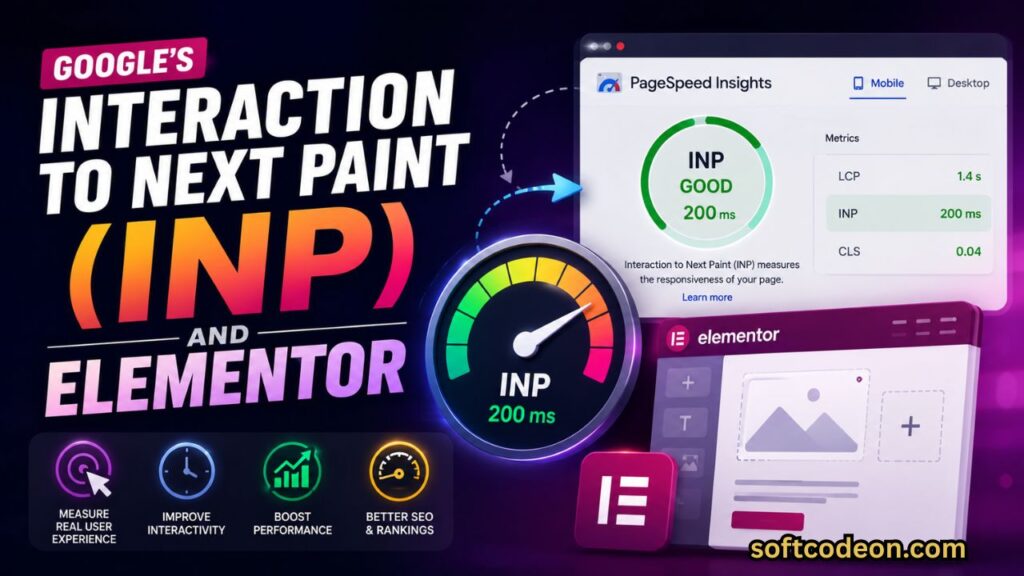
As of 2026, Google has completely transitioned from First Input Delay (FID) to Interaction to Next Paint (INP) . This metric doesn’t just measure delay; it measures the visual feedback loop. The heavy JavaScript used for entrance animations (bouncing headers and fade-in sections) is currently the biggest culprit for poor INP. To fix this, you must reduce your JavaScript “long tasks.” Using the new “Scrolling Effects” in Elementor is safer than complex third-party CSS animation triggers. I advise testing your site on an emulated low-end Android device via Lighthouse; if a tap on a mobile menu takes 400ms to visually respond, you must defer non-essential click events.
AI-Driven Optimizations and Edge Computing
The “fix it today” method of 2026 is edge computing. Relying on a single data center (like Virginia or Mumbai) adds latency for global visitors. The goal is to serve HTML from the node closest to the user. However, standard CDNs don’t cache logged-in WordPress dynamic HTML well. This is the ultimate solution to a slow Elementor site decoupling the visual builder from the live delivery. While technical, plugins are now bridging this gap by converting Elementor designs into static-first logic. In competitive markets, it’s wise to partner with a specialized B2B SEO agency that understands how indexing speeds affect enterprise search visibility.
How to Maintain Long-Term Elementor Performance
Speed is not a “set it and forget it” metric. Website maintenance is a living process. As you add new blog posts, update plugins, and change designs, the performance baseline shifts.
A Weekly 5-Minute Speed Audit Checklist
Run a quick “Health Check” every Friday. First, check Google Search Console for Core Web Vitals alerts. Second, navigate to Elementor > Tools > Regenerate CSS & Data. Syncing the dynamic CSS files clears the cache of the builder itself, which resolves strange style breaks. Third, review the “Asset CleanUp” dashboard to ensure no re-activated plugin is trying to load its JS on your optimized landing page. This is also the moment to clear your server-side object cache via Redis, ensuring that memory leaks aren’t degrading your TTFB over a week of uptime.
Testing Mobile Experience with Real Devices
An emulator in Chrome DevTools lies to you it doesn’t simulate CPU throttling accurately. Pick up an old, budget Android phone lying in your drawer, connect it to the same Wi-Fi, and browse. This “human” test is critical because I often face this while consulting: desktop scores are 99, but an actual mobile phone struggles on a 4G network because of an overflow-hidden CSS property that the emulator didn’t audit correctly. This real-world check ensures your human visitors aren’t leaving due to jerky scrolling, regardless of what artificial test scores indicate.
Addressing Specific Elementor Widget Pain Points
Some specific widgets are notorious. They look great in the editor panel but come with heavy performance baggage. Replacing these with lightweight, native HTML solutions drastically cleans up the load sequence.
The Carousel, Slideshow, and Google Maps Issue
Image sliders calculate widths and clone items, triggering Layout Shifts. Every time the browser has to calculate width: 100% on a moving carousel, it blocks the rendering pipeline. Similarly, a standard Google Maps iframe adds a massive JavaScript payload. My rule is to replace sliding widgets with a static “Featured Image” grid for mobile, or use a CSS-only carousel that doesn’t require JavaScript to function. For the map, I use a static image snapshot with a link overlay that says “Open in Google Maps,” which is usually 1/50th the size of the live API.
Replacing Heavy Forms with Optimized Solutions
Elementor Pro Forms are excellent, but they load the entire form handler script. If you have a simple contact form or a newsletter opt-in field, you don’t need a 15-field submission engine to handle it. Using a lightweight, dedicated form solution often reduces the DOM depth significantly. Even better, if you are solely collecting emails, consider a simple HTML form snippet styled with your global colors. It eliminates a major JavaScript file and removes a database lookup that Elementor performs to check for form submissions.
Conclusion
The frustration with a slow website usually comes from the feeling that your aesthetic vision is at odds with Google’s strict performance metrics. But after applying these techniques, you’ll find that speed and design aren’t enemies at all they’re best friends. By disabling unused icons, moving to Flexbox containers, cleaning up your database, and embracing modern caching headers like 103 Early Hints, you’re not just fixing a technical error; you’re building a resilient digital asset that loads like a native app.
Whether you are trying to passively monetize a blog or sell high-ticket services, the milliseconds genuinely matter. Speed creates trust, and trust creates revenue. This isn’t a one-time hack but a philosophy of minimalism. Do not install a heavy plugin to fix an issue that a single CSS line can solve. You are now equipped with the knowledge to reverse-engineer the bloat, and the only step left is to take action. Open your Elementor settings right now, disable the first widget you see that you haven’t edited in six months, and watch your Lighthouse score climb instantly. The web is fast, and your site can be, too.
