

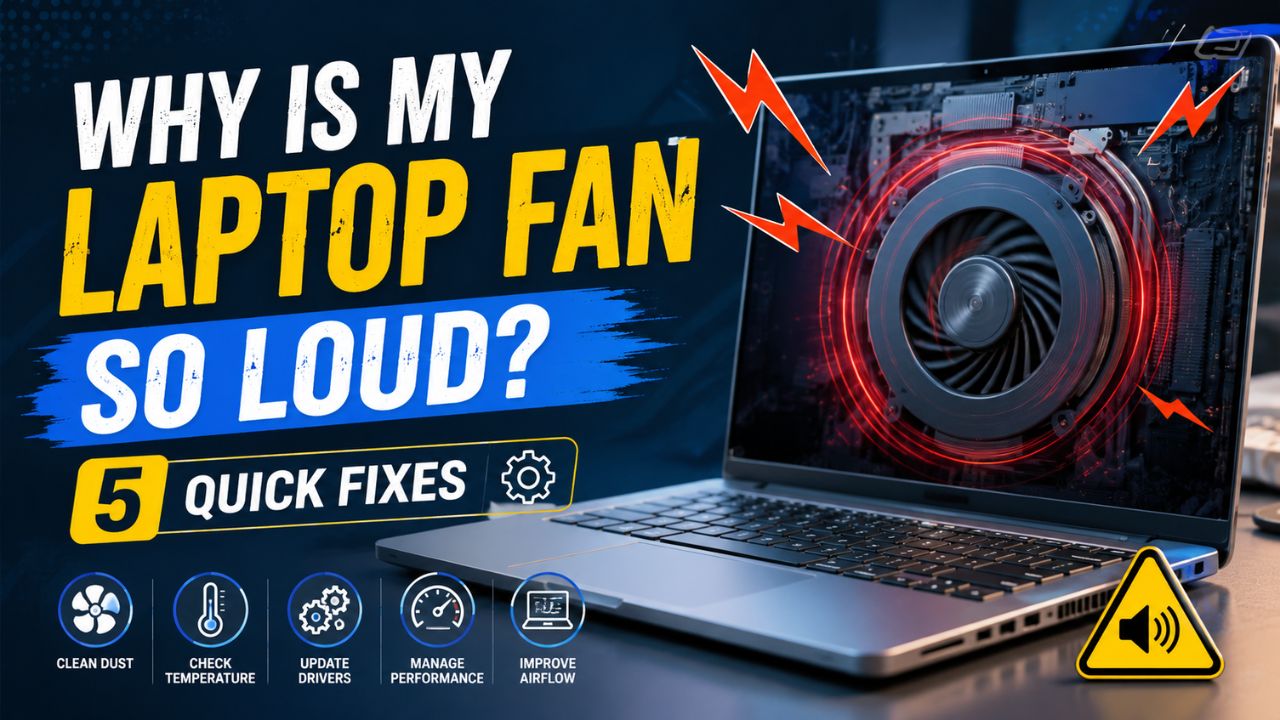
Your laptop is humming along one moment, and the next it sounds like a jet preparing for takeoff. That sudden roar from beneath your keyboard isn’t just annoying it’s your device crying out for attention. When the internal cooling system kicks into overdrive, it’s trying to protect delicate processors from heat damage that can permanently reduce performance. A loud laptop fan is the first warning sign of thermal stress, and ignoring it could cost you hundreds in repairs.
The good news is that most fan noise problems have surprisingly simple solutions you can tackle right at your desk without technical expertise. Before you pick up the phone to call expensive support lines, take a deep breath and work through these proven fixes. From dust-clogged vents to runaway background processes, I’ll walk you through exactly what’s causing that racket and how to silence it in under an hour.
Understanding Why Your Laptop Fan Becomes So Loud
Before jumping into fixes, it helps to understand what you’re actually dealing with. Your laptop fan isn’t loud because it’s broken it’s loud because it’s working overtime to push heat away from critical components. The relationship between temperature and fan speed is direct and automatic.
How Laptop Cooling Systems Actually Work
Every modern laptop relies on an active cooling system combining heat pipes, thermal paste, heatsinks, and small fans. The processor and graphics chip generate significant heat, especially under demanding workloads. Heat pipes transfer thermal energy toward a finned heatsink, where the fan blows air across metal fins to dissipate heat outside the chassis.
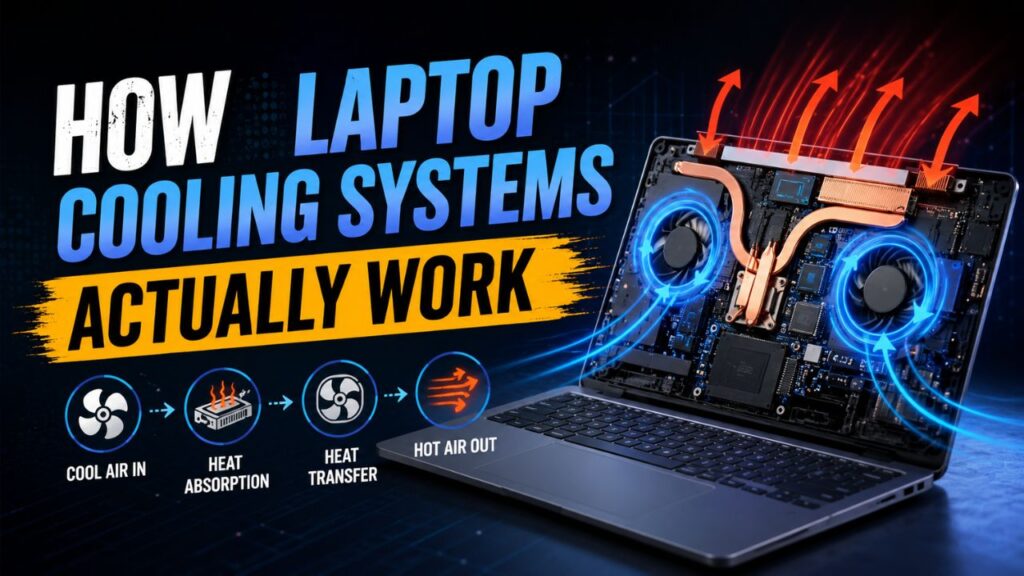
The entire process is regulated by firmware monitoring temperature sensors in real time. When components reach specific thresholds typically 70-80°C the system ramps fan speeds proportionally. This is why your laptop stays whisper-quiet during browsing but suddenly gets loud during gaming or video editing. The cooling system is responding to thermal load exactly as designed.
Common Triggers That Cause Sudden Fan Noise
Several everyday situations push your laptop’s cooling system to its limits. Processor-intensive applications like video editors or modern games increase heat output naturally. Dozens of browser tabs force your CPU to work harder managing active pages. Background updates Windows updates are notorious for this spike processor usage without obvious reason.
External factors matter equally. Using your laptop on soft surfaces like beds or blankets blocks bottom air intake vents. High ambient room temperatures during summer reduce cooling efficiency. Direct sunlight adds external heat. Even slightly elevated dust levels gradually reduce thermal performance over months of regular use.
When a Loud Fan Is Actually Normal Behavior
Brief fan bursts during app launches or heavy page loading are completely normal. Sustained noise during gaming sessions or video rendering is expected thin laptops simply can’t push hardware silently. Ultrabooks have smaller fans producing higher-pitched noise versus bulkier gaming laptops with larger, slower-spinning alternatives.
What isn’t normal is continuous loud noise during idle use, rhythmic pulsing cycling between silent and full-blast every few seconds, or grinding sounds indicating bearing failure. If your laptop struggles to breathe during email or document work, something needs attention.
Quick Fix #1: Check and Clear Physical Airflow Obstructions
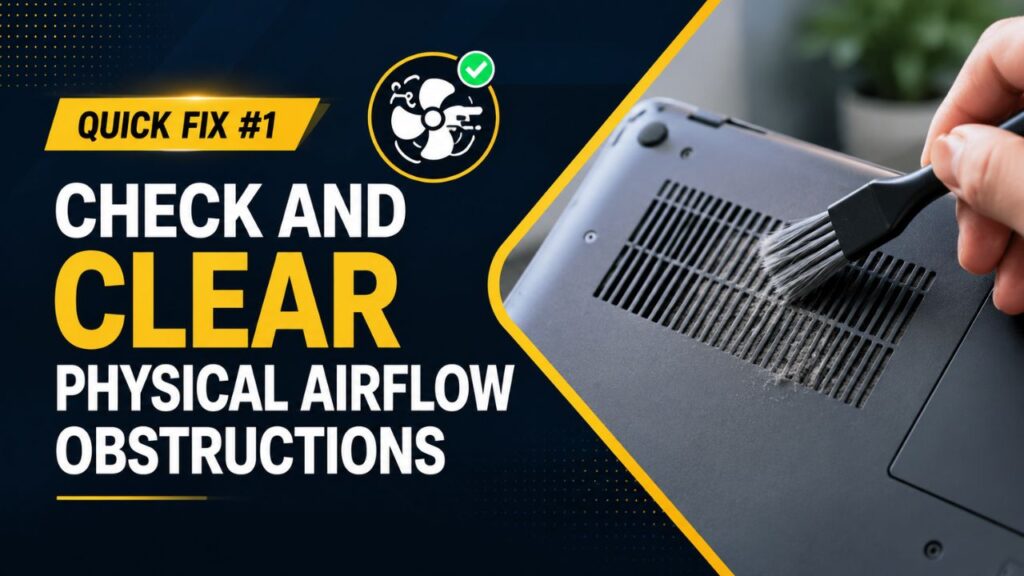
The simplest and most overlooked cause of loud laptop fans is physical blockage of the cooling system’s airflow path. Laptops pull cool air through bottom intake vents and exhaust hot air near the hinge or sides. Anything interfering with this airflow forces the fan to work harder.
Why Soft Surfaces Are Your Fan’s Worst Enemy
Placing your laptop on a pillow, blanket, couch cushion, or even your lap can completely block bottom-mounted intake vents. Without fresh air entering the chassis, internal temperatures rise within minutes. The fan responds by spinning at maximum RPM, but it’s essentially trying to cool with hot air already trapped inside an impossible task that results in a loud laptop fan with zero cooling benefit.
Always use your laptop on a hard, flat surface. If working from bed or couch is necessary, place a large book, cutting board, or cooling pad underneath to create clearance. Even a thin magazine under the rear edge to tilt the laptop slightly can dramatically improve airflow and reduce noise within seconds.
Cleaning Dust from Vents Without Opening Your Laptop
Dust accumulation is the silent killer of laptop cooling efficiency. Over months, fibers, pet hair, and airborne particles build up on fan blades and heatsink fins. This insulating layer reduces heat transfer and restricts airflow, forcing fans to spin faster achieving the same cooling effect.
Grab compressed air and shut down your laptop completely. Hold the can upright never inverted to avoid spraying liquid propellant and direct short, controlled bursts into exhaust vents. You’ll likely see dust puffing from intake vents. Work around all accessible openings, alternating between intake and exhaust sides. For stubborn buildup, a soft brush or vacuum with brush attachment on low power helps loosen particles before compressed air.
| Cleaning Method | Effectiveness | Risk Level | Best For |
|---|---|---|---|
| Compressed air through vents | Moderate | Very Low | Weekly maintenance |
| Vacuum with brush attachment | Moderate | Low | Pet hair, surface dust |
| Professional internal cleaning | Very High | None (pro service) | Annual deep cleaning |
| DIY disassembly and cleaning | High | Medium-High | Experienced users |
Recommended Laptop Cooling Pads Worth Considering
If you frequently push your laptop with gaming, video editing, or multiple demanding applications, a cooling pad makes significant differences in both temperatures and noise. These platforms elevate your laptop for better passive airflow while incorporating large, slow-spinning fans supplementing internal cooling.
Quality cooling pads like the Klim Wind or IETS GT500 create positive air pressure under your laptop, actively forcing cool air into intake vents. This reduces workload on internal fans, resulting in noticeably quieter operation even under heavy loads. For budget users, even a simple non-powered ventilated stand can drop temperatures by 3-5°C enough to keep your laptop fan from going loud during moderate use.
For website performance optimization similar to cooling optimization, check our guide on FlyingPress for ultimate website speed score.
Quick Fix #2: Tame Your Software and Background Processes
Sometimes the loud laptop fan has nothing to do with physical problems and everything to do with what’s running invisibly. Background processes, bloatware, and poorly optimized applications push processors to high usage levels generating unnecessary heat.

How to Find CPU-Hungry Programs in Task Manager
Windows Task Manager is your first defense against software-caused fan noise. Press Ctrl+Shift+Esc to open it, then look at the CPU column in Processes tab. Click the CPU header to sort by processor usage, showing most demanding processes at the top. Applications consistently using more than 20-30% CPU while not actively being used likely contribute to your loud laptop fan.
Pay attention to browser processes modern browsers consume surprising processing power, especially with extensions. Close unnecessary tabs. Look for software updaters, cloud sync services, and antivirus scans running without awareness. On Mac, use Activity Monitor in Applications > Utilities for the same analysis, sorting by % CPU to identify resource hogs.
Disabling Unnecessary Startup Programs
Many applications install startup components loading automatically every boot, silently consuming resources from login. These accumulate old printer utilities, chat apps, game launchers, and manufacturer bloatware create unnecessarily busy systems at idle.
Open Task Manager and switch to the Startup tab. Check each program’s status and “Startup impact” rating. Right-click non-essential programs rated High or Medium impact and select Disable. Common candidates include Spotify, Steam, Adobe Creative Cloud, Skype, and OneDrive if unused. Your laptop boots faster and idles cooler, enabling quieter fan behavior.
Updating Drivers and BIOS for Better Power Management
Outdated drivers cause inefficient hardware operation generating excess heat. Graphics drivers are particularly important integrated and discrete GPUs rely on proper optimization to scale power usage appropriately. Visit your laptop manufacturer’s support website and download latest chipset, graphics, and BIOS updates for your exact model.
BIOS updates sometimes include critical fan curve adjustments and thermal management improvements directly affecting when your loud laptop fan spins up. Manufacturers refine these parameters based on real-world data collected post-launch. Always follow manufacturer instructions precisely when updating BIOS and ensure the laptop is plugged into AC power during installation.
Quick Fix #3: Adjust Your Power Settings for Cooler Operation
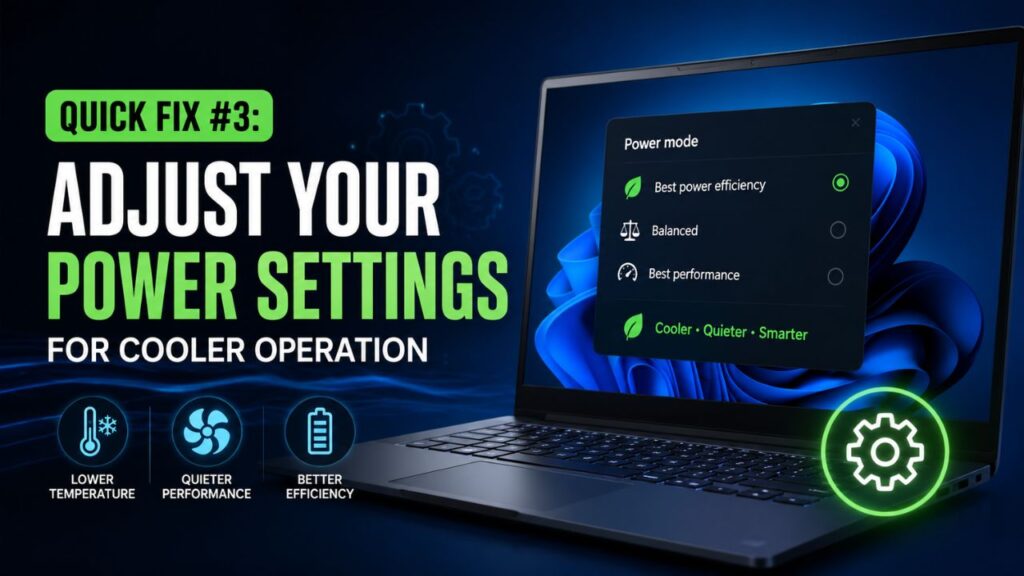
Windows and macOS offer power management profiles dramatically influencing how aggressively your processor runs and consequently, how much heat it produces. Strategic adjustments achieve significantly quieter operation with minimal performance impact.
Windows Power Plans: Balanced vs. High Performance
Windows includes multiple power plans controlling processor behavior. The High Performance plan forces maximum clock speeds constantly, even when idling generating unnecessary heat. Unless actively gaming or rendering, there’s no benefit to this approach.
Switch to Balanced or Power Saver through Control Panel > Power Options. Click “Change plan settings” then “Change advanced power settings.” Expand Processor Power Management and set Maximum Processor State to 99% instead of 100% this prevents Intel Turbo Boost and similar technologies during light workloads, dramatically reducing heat output without noticeably affecting browsing or document editing.
Mac Equivalent: Energy Saver Preferences
Mac users achieve similar results through System Settings > Battery. Enable “Low Power Mode” when on battery, reducing processor performance and background activity while extending battery life. For plugged-in operation, manually enable Low Power Mode from the Battery menu bar icon when fan noise becomes intrusive.
Navigate to System Settings > Battery > Options and enable “Optimized video streaming while on battery” to reduce GPU workload. These combinations often eliminate active cooling needs during productivity tasks, keeping MacBook fans silent throughout the workday.
Third-Party Fan Control Utilities
When built-in management isn’t enough, utilities like SpeedFan for Windows or Macs Fan Control for macOS provide direct fan behavior control. Create custom fan curves trading slightly higher temperatures for reduced noise fans stay at minimum RPM until processors reach higher thresholds than conservative defaults.
Exercise caution too-slow fans risk dangerous temperatures during unexpected workloads. Monitor temperatures when testing new curves. A reasonable approach keeps fans silent until around 60°C, then ramps gradually rather than jumping to maximum immediately.
For insights on optimizing digital systems efficiently, our guide on how Generative Engine Optimization is reshaping SEO explores parallel efficiency principles.
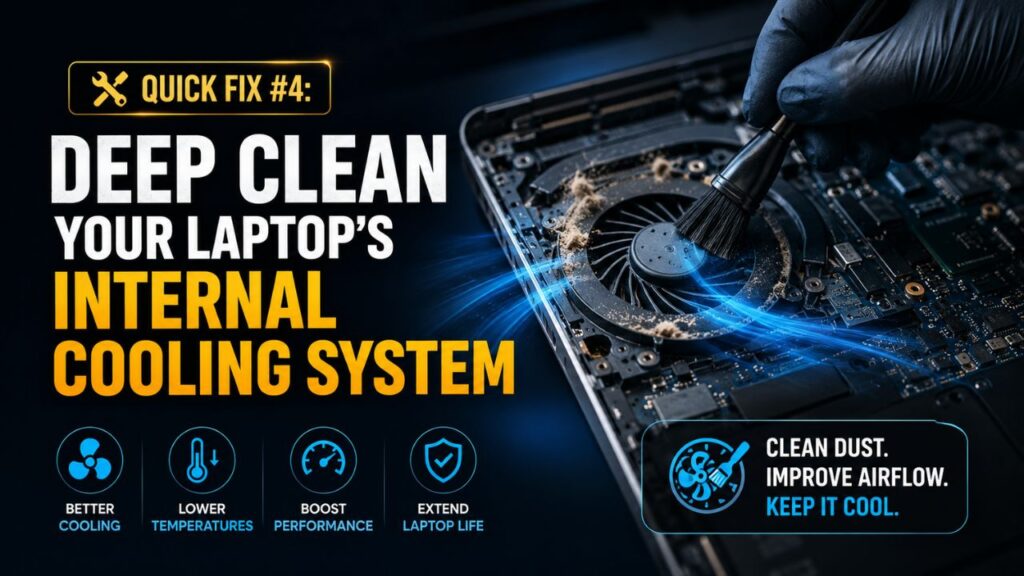
Quick Fix #4: Deep Clean Your Laptop’s Internal Cooling System
When external cleaning and software fixes don’t resolve your loud laptop fan, it’s time for internal cleaning. Dust builds deep inside the cooling system where it does most damage. Thorough internal cleaning restores near-new cooling performance.
Signs Your Internal Fan Needs Physical Cleaning
Several symptoms indicate dust penetration beyond external vent access. Rhythmic pulsing sounds cycling every few seconds at idle suggest uneven dust buildup causing imbalance. Temperatures spiking immediately upon launching applications rather than rising gradually indicate clogged heatsink fins. If your laptop is over a year old without internal maintenance, dust accumulation is virtually guaranteed.
Visual inspection through vent openings with a flashlight confirms suspicions look for gray or brown buildup on visible fan blades or between heatsink fins. Substantial accumulation means external cleaning methods won’t sufficiently restore cooling and silence that loud laptop fan.
Step-by-Step Safe Cleaning Guide
Gather tools before starting: precision screwdriver set, compressed air, isopropyl alcohol (90% or higher), and cotton swabs. Power down completely, unplug the charger, and disconnect the internal battery after opening the case to prevent short circuits.
Remove bottom panel screws, tracking which screws came from which holes they’re often different lengths. Gently pry the bottom panel using a plastic spudger, not metal screwdrivers, to avoid cosmetic damage. Inside, hold fan blades in place with your finger spinning fans with compressed air can generate damaging electrical current. Use short bursts to blow dust from multiple angles. For stubborn grime, gently wipe with alcohol on cotton swabs.
Reapplying Thermal Paste for Maximum Heat Transfer
Thermal paste between processor and heatsink ensures efficient heat transfer. Over 2-3 years, paste dries out, cracks, and loses conductivity degraded thermal paste forces louder laptop fan operation.
Replacing thermal paste requires removing the heatsink assembly beyond basic cleaning. Clean old paste using isopropyl alcohol and lint-free cloth. Apply a pea-sized dot of quality paste like Arctic MX-6 or Noctua NT-H2 to the processor center, then reinstall the heatsink mounting pressure spreads paste evenly. This maintenance alone drops temperatures 5-15°C, often silencing loud fans that previously ran constantly.
Quick Fix #5: Hardware Limitations and External Solutions
After exhausting previous fixes, honestly assess whether you’re asking too much from your hardware. Not every loud fan indicates problems sometimes it reveals underpowered equipment for your demands.

When Your Laptop Is Genuinely Underpowered
Entry-level laptops with dual-core processors and integrated graphics weren’t designed for sustained heavy workloads. Editing 4K video, running complex data analysis, or playing AAA games on thin-and-light ultrabooks forces cooling systems beyond design specifications.
Check your laptop’s specs against recommended requirements for demanding applications. If regularly exceeding recommendations, your loud laptop fan isn’t malfunctioning it’s hardware heroically keeping up. Consider upgrading to better-cooled machines or switching to desktops for stationary workloads where large, quiet fans easily manage thermal output.
When to Call Professional Support Services
Grinding, clicking, or scraping sounds indicate bearing failure physically damaged fans needing replacement. These mechanical noises differ from normal airflow sound and worsen over time.
If your laptop shuts down unexpectedly during intensive tasks, it’s experiencing thermal shutdown preventing permanent damage. This indicates cooling system failure beyond cleaning possibly failed heat pipes or dead fans. Professional services diagnose with thermal imaging and replace failed components. Continuing to use a laptop that triggers thermal shutdown risks permanent processor damage.
For businesses managing repair workflows, exploring invoice approval automation tools streamlines expense tracking and approval processes.
Long-Term Prevention
Fixing your loud laptop fan satisfies, but preventing recurrence protects both ears and investment. Simple habits maintain cool, quiet operation throughout your laptop’s usable lifespan.
Monthly Maintenance Habits
Set recurring monthly reminders for five minutes of basic laptop hygiene. Use compressed air through powered-off vents, focusing on exhaust areas. Wipe exterior surfaces with lightly dampened microfiber cloths to prevent dust intake. Check that no stickers or labels block ventilation openings.
Review installed programs monthly, uninstalling unused items. Each removed application means fewer background processes and less accumulated digital clutter contributing to unnecessary processor usage. This aligns with digital efficiency principles our guide on creating viral Instagram reels in 2025 emphasizes the same focus on simplicity.
Environmental Factors for Cooling Health
Keep workspaces dust-free regular vacuuming reduces airborne particles available for laptop intake. Maintain reasonable room temperatures; if you’re uncomfortable without air conditioning, your laptop struggles too. Avoid direct sunlight and never leave laptops in hot cars where internal temperatures exceed safe limits even when powered off.
Pet owners should be especially vigilant about cleaning, as pet hair effectively clogs cooling systems. Consider permanent laptop stands or cooling pads for desk use consistent elevation prevents dust pickup and ensures optimal airflow.
Conclusion
A loud laptop fan isn’t something to tolerate or drown out with headphones. It’s your device communicating clearly about thermal health, and addressing root causes protects both immediate comfort and long-term reliability. The five fixes covered clearing airflow obstructions, managing software loads, adjusting power settings, deep cleaning internally, and assessing hardware limitations solve most fan noise problems without expensive service.
Start with simplest solutions and work upward. Most people find cleaning vents and switching from High Performance power mode quiets their loud laptop fan within minutes. For persistent issues, internal cleaning and thermal paste replacement restore near-silent operation even on older machines. If every fix fails, consider whether your laptop matches performance needs or has earned well-deserved retirement after faithful service.