

You just hit the export button on a stunning 8K cinematic masterpiece or a critical client presentation. You play it back locally, and it looks crisp and flawless. But then comes the dreaded delivery moment. You try attaching it to an email only to be greeted by that frustrating bounce-back: “Attachment size exceeds limit.” You try a generic messenger, and suddenly, the pristine footage looks like a pixelated mess from 2005. If you’ve ever felt the pain of having your hard work turned into digital noise just because you couldn’t figure out how to share a large video file without losing quality, you are not alone.
In 2026, we are living in a golden era of high-definition content. Smartphones now bypass professional cinema cameras from a decade ago, with formats like 4K, 8K, and raw LOG footage becoming standard. However, traditional transfer methods remain stuck in the past. The good news is that the tech landscape has evolved rapidly this year, introducing peer-to-peer speeds and intelligent cloud compression algorithms that can handle the load without sacrificing a single pixel. This guide will walk you through the exact methods and strategies to deliver your high-fidelity footage exactly as intended, preserving every bit of detail and dynamic range.
The Critical Problem with File Sizes in 2026
Before looking at solutions, we must understand why this problem is harder to solve in 2026. The video standard has shifted; we aren’t just dealing with 1080p clips anymore. With the rise of Apple ProRes recording on iPhones, 8K on Samsung devices, and raw video output from mirrorless cameras, individual files now often hit 50GB or more for just a few minutes of footage. The primary bottleneck is no longer simply internet speed; it’s the compression algorithms used by default sharing platforms that silently destroy your hard work.
Understanding Lossless vs. Lossy Compression
This is the technical hill on which your video quality either lives or dies. Every time you send a file through a chat app or social media site, it typically undergoes “lossy” compression. This process reduces file size by permanently discarding data, particularly in areas of subtle color gradients and fine detail. To share a large video file without losing quality, you must avoid this trap entirely.
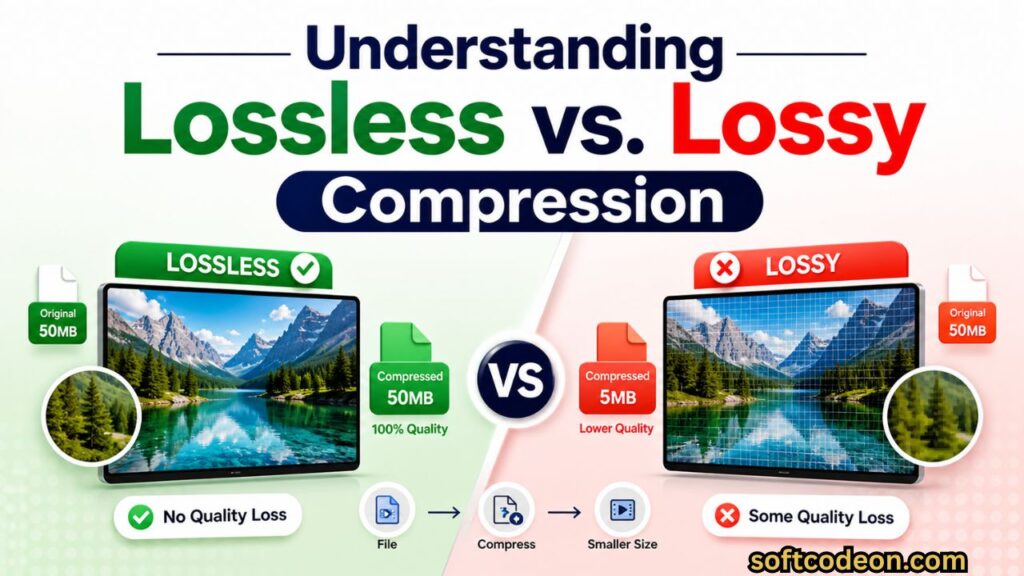
Lossless compression is like a zip file specifically optimized for video. It mathematically packs the data more efficiently without discarding pixels. While these files remain large, modern codecs like H.265 (HEVC) and H.266 (VVC) offer significantly better visual preservation than their predecessors. In a professional workflow, understanding the difference between delivery codecs (like H.264) and intermediate codecs (like ProRes) is vital. You should keep the file in a high-bitrate intermediate codec until the final delivery step to prevent generational quality loss.
The Email Attachment Trap
The most common pitfall in 2026 is still the email attachment. Despite Gmail and Outlook offering cloud integrations, the actual attachment limit has barely budged, often capped at a ridiculous 25MB. To put that in perspective, a single 4K RAW photo frame often weighs around 30MB. A one-second video at 60fps would instantly break this limit. Users often make the mistake of dropping a master file into a random free editing app just to “shrink it,” resulting in a technically smaller but visually destroyed file. The misconception here is that shrinking file size must equate to shrinking visual quality—with the right tools, it doesn’t.
Share Large Videos Without Losing Quality
Method 1: Using Peer-to-Peer (P2P) Transfer Protocols
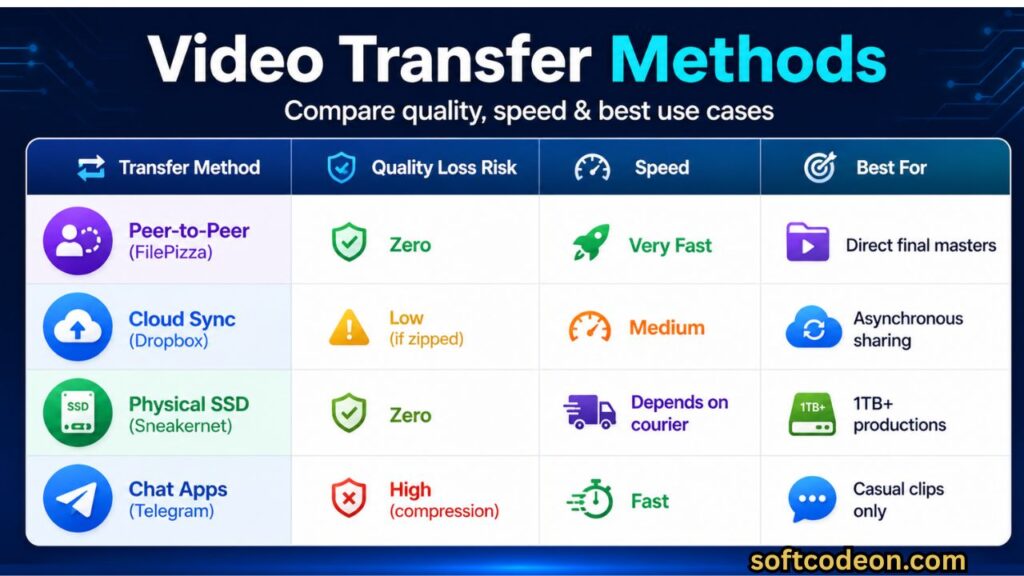
If you are both impatient and security-conscious, cloud storage can feel like an unnecessary middleman. You wait for the upload, store it on a third-party server, and wait for the recipient to download it. In 2026, Peer-to-Peer (P2P) file transfer technology has matured into the gold standard for directly sending raw footage. This method creates a direct encrypted tunnel between your device and the recipient’s device, leaving no server copy behind.
FilePizza for Instant Direct Transfers
For a true zero-quality-loss transfer, you cannot beat the immediacy of a direct WebRTC-based tool like FilePizza. Unlike traditional uploading, FilePizza doesn’t store your data on a server. Instead, it generates a temporary magnet link. As long as your browser tab remains open, the data streams directly from your hard drive to the downloader. There’s no storage cap on a server-side hard drive; you’re only limited by your local disk speed. This is particularly critical when sharing uncompressed final masters that must not be touched by any automated server-side compression during transit.
Resilio Sync for High-Security Projects
When sharing sensitive rough cuts, whether a proprietary tech integration or a documentary requiring strict chain-of-custody, public cloud services can pose a legal risk. Resilio Sync utilizes BitTorrent’s peer-to-peer protocol with military-grade encryption. Think of it as a private sharing network. You set up a shared folder on your machine, and your editor syncs directly with it. If you’re transferring a massive 200GB timeline, Resilio Sync offers differential sync: if the transfer stops at 99%, it doesn’t restart from zero; it only grabs the missing data blocks. This is a lifesaver for creators who frequently work with high-bitrate assets where a stable, uninterrupted 10-hour upload is a fantasy.
Method 2: Optimizing Cloud Storage Services for Video
For asynchronous sharing where the recipient doesn’t need the file this second, cloud storage remains the backbone of collaboration. However, the default settings of Google Drive or Dropbox are not optimized for video previews. You need to configure these platforms to treat your files as professional media, not just random data blobs.
Google Drive and Dropbox Transfer Best Practices
The biggest mistake creators make with the cloud is sending a direct link to a raw .MXF or .MKV file. The platform tries to generate a low-bitrate streaming proxy, often failing and confusing the client. Instead, use dedicated features. Dropbox Transfer is a premium feature built for final deliveries. It allows up to 250GB per transfer, provides download analytics, and presents the file as a clean download package. Similarly, on Google Drive, ensure you are uploading in the “Original Quality” setting. A pro tip for 2026: zip final deliverables into archives before uploading; this prevents the cloud crawler from attempting to re-encode your thumbnail, preserving the bit-for-bit integrity of the file.
Frame.io for Collaborative Review
If your sharing involves feedback rather than just delivery, putting a raw file on Drive is a clunky experience. Frame.io has become the industry standard. It allows you to upload original master files, but instead of forcing your client to download 50GB just to view it, it instantly generates a streaming proxy. The original high-quality file remains untouched and can be downloaded by the editor directly later. Frame.io‘s 2026 updates now include HDR playback support, ensuring that if you’re sharing Dolby Vision content, the customer sees the correct color gamut without touching a single raw pixel.
How to Use Compression Codecs (Without the Visual Loss)
This section often terrifies filmmakers because “compression” is a dirty word. But not all compression is destructive. Professional video engineering relies on mastering the art of visually lossless compression. The goal isn’t to avoid codecs entirely; it’s to use smarter ones.
HandBrake and Shutter Encoder Deep Dive
You don’t need expensive subscriptions; powerful offline tools give you surgical control. Shutter Encoder is a free Swiss Army knife for video. To share a large video file without losing quality, set your codec to H.265, then navigate to the bitrate controls. Select “CQ” (Constant Quality) and set the value to 18. This tells the algorithm to focus on retaining every visual detail rather than just hitting a strict file size limit. For archival purposes, you can also re-wrap files. If you have a massive ProRes file, simply re-wrapping it into an .MKV container without re-encoding preserves the exact same quality instantly while saving the recipient a software compatibility headache.
Keyframe Intervals and Motion Estimation
To truly take control, dig into the encoding engine’s brain, specifically motion estimation and keyframe intervals. If you are sharing a talking-head interview with a static background, set a high keyframe interval (e.g., 250 frames). This instructs the codec not to store a full picture of the background every second, just to hold the first one. This can shave 30% off your file size without altering a single foreground pixel. Similarly, setting the motion estimation algorithm to “Uneven Multi-Hexagon” forces the codec to work harder analyzing the video, packing the data more efficiently than the default “Diamond” search. It takes longer but results in a smaller file mathematically closer to the source.
Physical Media and NAS Solutions for Massive Files
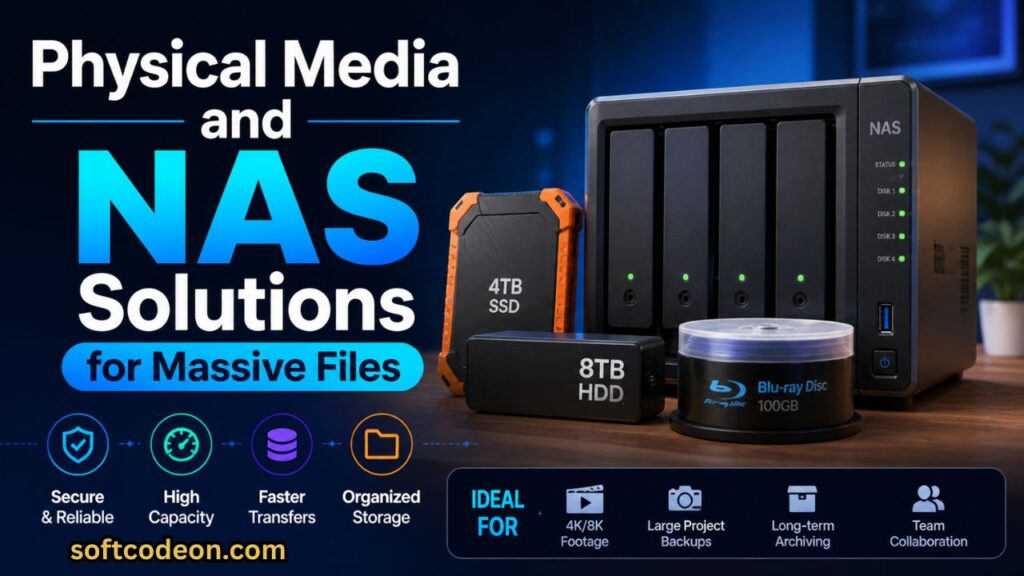
In the race to the cloud, we often forget the physics of bandwidth. If you are generating 1TB of data daily, no residential fiber line can handle that quickly. Sometimes, the fastest network is a car.
Sneakernet 2.0: Rugged SSDs
The “Sneakernet” method (walking a drive over) remains unbeaten for massive data transfers in 2026. However, we no longer use fragile spinning hard drives. The standard is now the Samsung T9 Shield, a rugged, waterproof NVMe SSD reaching speeds up to 3,000 MB/s. When sharing raw 8K footage with a colorist, loading the material onto one of these drives and physically couriering it is often the only “lossless” method that supports 100% quality. It’s a physical file copy, meaning the checksums will match perfectly.
Setting Up a Synology NAS for Remote Access
Bridging the gap between a physical file server and the internet is where a NAS device becomes the ultimate tool. A Synology DS224+ allows you to set up your own private cloud. By linking it with a high-speed domain, you create a secure portal for a client on the other side of the world to download the master file directly from your office. Unlike Dropbox, it’s a one-time investment. The 2026 Synology DSM software includes granular permissions; you can send a client a link that only lets them view a specific “Delivery” folder without touching your raw project files. They download the original ProRes file directly from your machine, maintaining the exact color space you exported.
How to Create a Robust Delivery Hub
Relying on a single link is dangerous. SSDs can corrupt, cloud links can expire, and Google Drive links can hit a download quota limit. A professional delivery strategy involves combining self-hosted landers with cloud redundancy. Mastering how algorithms treat content structures can enhance delivery, much like knowing how 6G technology will shape the world’s fastest networks gives you an edge in predicting upload speeds.
Building a Password-Protected Client Portal
The next evolution beyond a generic Dropbox link is a simple, static client portal. Using a protected WordPress site, you can create a dedicated page containing a password-protected download link to the full-resolution file. This prevents the link from being shared publicly and allows you to embed context—like a Vimeo embed draft and a downloadable PDF of usage rights—right next to the download button. It looks professional and reduces the “what do I click” friction clients often experience. As demand for high-quality media rises, the ability to optimize website speed scores ensures your delivery portal instantly loads the download CTA without frustrating the end user.
Automating Watermarking for Screeners
If you are sharing a film for review but are terrified of leaks, sharing a clean high-quality file is a massive risk. A modern workflow involves an automated “screener” setup. Before the file leaves your hard drive, run it through an FFmpeg script that burns unique, translucent, dynamic watermarks onto the video. Because the underlying compression is still high-bitrate, the video quality remains excellent for review. The recipient sees a crisp image, but if the file appears on a torrent site, you know who leaked it. Much like learning how to showcase experience for YMYL sites, establishing this chain of trust is non-negotiable for high-authority creators.
Why File Integrity Verification Matters
You’ve uploaded the file, and the recipient downloaded it. But is it 100% identical to the file on your timeline? Guessing isn’t an option in professional video. “Bit rot” or transfer corruption can introduce visual glitches that ruin a screening. To guarantee you shared the file without losing quality, you need cryptographic proof.
Checksum Verification Explained
The industry-standard method is checksum verification. A hashing algorithm (like SHA-256) reads every byte of your exported master file and generates a unique alphanumeric string. You send this string to your client along with the download link. Once they download the 100GB file, they use a free tool to generate the hash on their end. If the two strings match exactly, it is scientifically impossible for the video data to have changed, even by a single bit. This is the only way to certify a lossless transfer without watching the entire video frame-by-frame.
Professional Tools: Hedge and TeraCopy
For high-volume media transfers in 2026, dragging and dropping files in Windows File Explorer is a liability. TeraCopy is a free utility that dynamically adjusts buffer sizes to speed up physical transfers and runs an automatic CRC check after every copy. On the higher end of film production, software like Hedge is built specifically for offloading camera mags. As Hedge copies the media, it runs simultaneous checksums. This hardware-level verification ensures that the copy you physically ship or upload is a perfect forensic clone of the footage you shot, providing the ultimate safety net.
Sharing Raw 8K and HDR Workflows
Sharing high dynamic range (HDR) content introduces complexity beyond file size. If you send an HDR master to a client viewing on an SDR screen, it will look gray, flat, and low-quality, even if the data is perfect. Sharing without losing quality means sharing without losing color context.
Dolby Vision Metadata Preservation
The key to HDR delivery isn’t just the .mov file; it’s the metadata. Dolby Vision (Profile 8.4) uses dynamic metadata to tell the TV how bright to glow on a scene-by-scene basis. If you run an HDR file through a generic compression tool, this metadata is stripped. For lossless HDR sharing, you must use software that supports metadata passthrough. Exporting an HEVC file from DaVinci Resolve with the “Embed Dolby Vision Metadata” box checked ensures the recipient’s TV automatically switches to the correct color space. This preserves the creator’s artistic intent regarding specular highlights and deep shadows.
Generosity in Color Grading Rounds
Often, sharing a large file isn’t the end; it’s a step in a revision loop. To avoid losing quality through multiple round-trips, never bake in the grade unless approved, but also never send the raw log file to someone who doesn’t know how to view it. A “quality” share involves sending a video with a “Show LUT” (like Rec.709-A) baked into the metadata flag, but with the underlying pixels still in LOG format. This way, the director sees a corrected image, but the colorist can strip the flag and access the full dynamic range without any generational data loss, maintaining a true master file until the final sign-off.
Key Takeaways for Flawless Transfers
- Never use email attachments for professional video; the 25MB limit is a guaranteed quality executioner.
- For immediate, no-budget transfers, use P2P tools like FilePizza to bypass server upload waits.
- Invest in a physical NVMe SSD “Sneakernet” for files over 250GB; it’s often faster and safer than the cloud.
- Always verify your delivery with a SHA-256 checksum to guarantee zero byte loss.
- Protect your color grade by embedding Dolby Vision metadata and correcting gamma shifts before sharing.
Conclusion
Mastering how to share a large video file without losing quality in 2026 is a fusion of network engineering and creative codec mastery. The era of hoping the file “looks okay” on the other end is over. As we push into 8K, HDR, and even volumetric video, the data integrity of our deliverables directly reflects our professionalism. By ditching consumer-grade messengers and adopting peer-to-peer protocols, cloud-native proxies via tools like Frame.io, and physically verified SSD hand-offs, you build a pipeline where pixel perfection is non-negotiable and always achievable.
Ultimately, preserving video quality during the sharing process is a sign of respect for the content, the audience, and the craft. The tools in 2026 are powerful enough to make lossless transfers feel effortless, yet discerning enough to require a human touch to fine-tune the settings. Speed is merely a convenience; data fidelity is a professional obligation. By adhering to the workflows outlined here, you ensure that the final frame your client or audience sees maintains the exact emotional impact and visual depth you meticulously composed on your timeline.
Did you find these file-sharing strategies effective? For more deep dives into productive tech workflows, check out our guide on how to automate boring office tasks with AI.
